Printing is a small workflow with several places for a copy to end up. The document may appear on a computer, in a queue, on a printer tray, and in your bag. Before printing payment information from a shared device, plan the whole route rather than treating the print button as the finish.
First establish that you may print the material for the intended use. The provider website’s terms (external source) limit copying and include conditions for a personal-use exception. Public availability does not authorize a stack of redistributed handouts. Personal communications may have their own retention instructions; review the relevant document and permissions rather than assuming one rule covers every file.
Choose what should become paper
If your task is public research, a sheet containing your own questions and source URLs may be enough. That avoids printing a long official document just to remember where it is. If you genuinely need a permitted personal copy, determine whether the complete document is required to preserve its meaning. A single selected page may omit conditions or instructions elsewhere.
For personal records, consider whether this printing environment is appropriate at all. You may decide to use a private printer or ask about an official paper-copy route instead. The linked Republic Bank and Comdata consent (external source) includes instructions about retaining communications; your applicable document is the one to check.
In a fictional example, Priya needs to remember where to find public paper-copy information. She originally plans to print every page she opened. After reviewing the goal, she writes the source title and section name on her own worksheet. No provider document needs to be copied for that task. A week later, a different task may justify a permitted personal print, but it deserves a fresh decision.
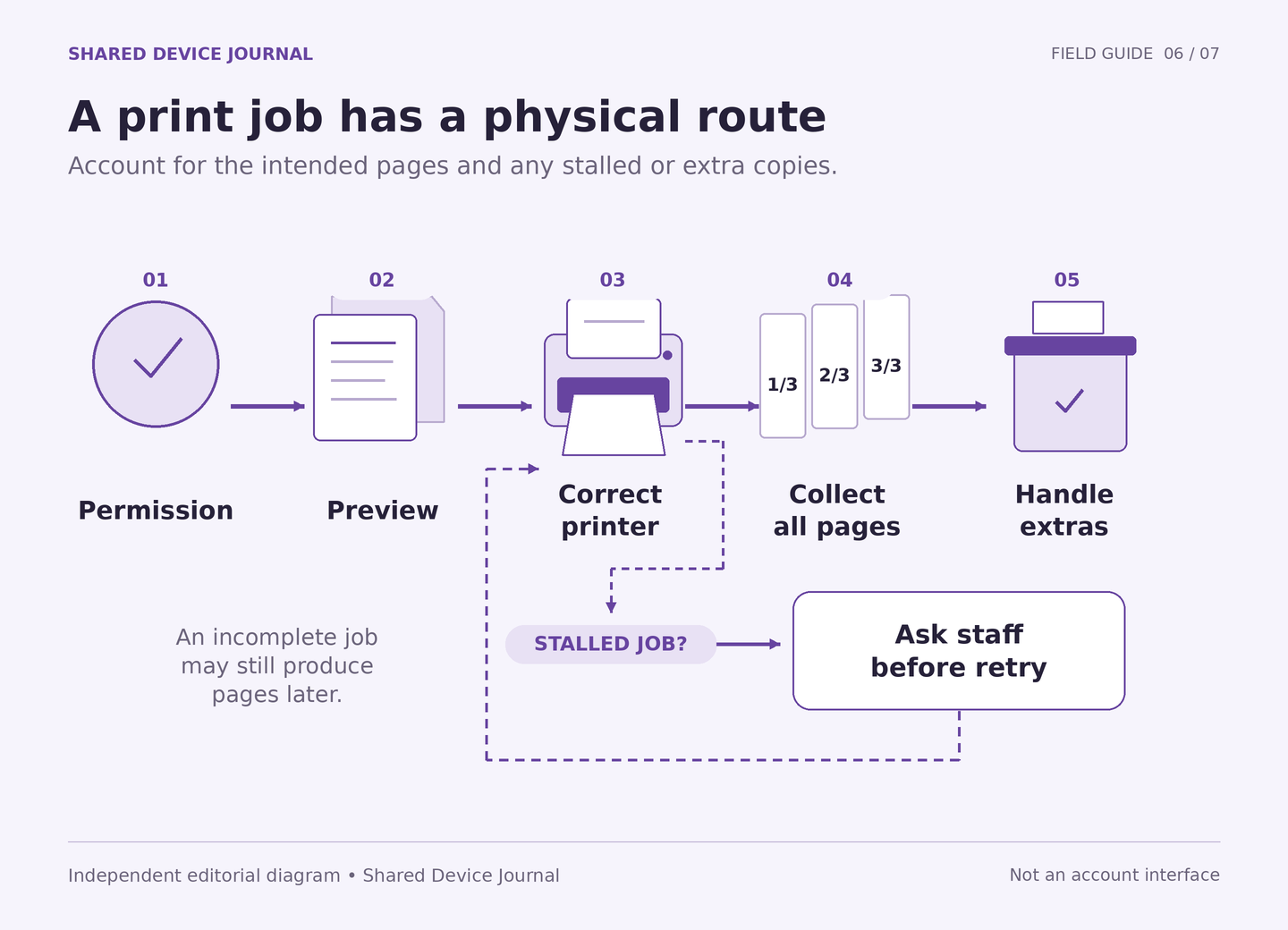
Find the physical printer before sending the job
Ask staff where output is collected, whether someone must release the job, whether there is a charge, and what to do if the printer stalls. Ask those questions without displaying a personal notice. A printer name on the screen can be ambiguous, especially in a building with several floors or service desks.
Check whether you can remain near the output and collect it promptly. If the arrangement requires leaving a personal record unattended, choose another route when possible. Do not assume that a staff member watching the area means every printed page is private. The venue’s actual practices matter.
Before using a print service that requires an email attachment or upload, recognize the added disclosure. Sending a personal notice to the service is a separate action from printing on a connected printer. Review who receives it and how it is handled. Do not let a convenient instruction silently become permission to send the document through a helper’s account or an unfamiliar service.
Preview for completeness and destination
Where a preview is available, inspect the page count, page range, orientation, and selected printer. Look for cut-off text, tiny scaling, blank pages, or a missing final section. These are general print checks; this journal does not claim a particular browser or provider interface has specific controls.
For your own worksheet, avoid putting private details in the title. Some systems display job names at collection. A neutral label helps reduce unnecessary exposure, but it does not remove the sensitivity of the contents. Naming is only one part of the plan.
After printing, compare the actual pages to what you expected. Count them, inspect the first and last pages, and check that important text is readable. Keep pages together before moving away. Do not leave the original beside the printer while arranging the rest of your belongings.
Handle a stalled job before trying again
A printer that produces nothing immediately may still have the job waiting. Sending the same document repeatedly can produce extra copies later. Ask staff about the specific job and the venue’s cancellation procedure. Do not claim that a queue is empty unless the available controls or staff actually establish it.
Suppose fictional reader Ben expects a three-page personal print but receives only page one. He should not assume the other two pages disappeared. He asks staff about the incomplete job and waits for a clear result before resending anything. If he cannot resolve it before leaving, he records the location and time for follow-up without giving staff unnecessary account details.
Collect spoiled or duplicate pages that are yours and use an appropriate confidential-disposal route. Avoid leaving them in an open recycling tray. Do not interfere with other visitors’ documents or attempt to administer the printer yourself.
Leave with a complete result and honest limits
The practical finish is: intended copy collected, unwanted copies handled through the venue’s process, and any unresolved print issue recorded. Check the readable-copy test if paper is part of a longer retention arrangement. Check the download guide if printing first creates a local file.
CISA cautions that ordinary deletion does not fully erase a file (external source). Similarly, this print checklist does not certify removal of device logs, spool files, or backups you cannot inspect. Reduce unnecessary copies from the start and use the left-behind response guide if a personal document may remain. A measured response is more useful than promising that a cleanup step made every trace disappear.
Sources and scope
- External official source: Corpay website Terms of Use, January 18, 2025 — Website-content use restrictions; review permitted copying before retaining or redistributing. Checked 2026-10-04.
- External official source: Republic Bank and Comdata E-Sign Consent — Issuer-specific electronic communication, retention and paper-copy provisions. Checked 2026-10-04.
- External official source: CISA: Safeguarding your data — Shared-device boundaries and limits of ordinary file deletion. Checked 2026-10-04.